


Salesforce AI is becoming more powerful with every release, and one of the most useful features for developers is the ability to invoke Prompt Templates through the REST API. This allows any external application — mobile apps, websites, backend systems, or automation tools — to use Salesforce’s AI capabilities, all governed by the Einstein Trust Layer.
In this guide, I’ll walk you through exactly how to call a Prompt Template using Postman, using the same steps I demonstrated in my video.
This tutorial is inspired by Salesforce's official Agentforce Workshop but simplified for quick learning.
I've used a prompt template where I am accepting Adventure Master (A custom object having adventure name, duration, price, difficulty etc). Based on the record id it's going to create social media post for LinkedIn, Twitter and Slack.
If you would like to watch complete prompt template setup, you can watch this video below
💙 https://www.youtube.com/watch?v=3LWeh-fZ-l0
Step 1: Invoke the prompt template from Postman and the Connect REST API
Navigate to https://www.postman.com.
Sign in or create a new account.
Navigate to the Salesforce Platform APIs postman collection.
Fork the collection by clicking on the Fork button on the top right corner.
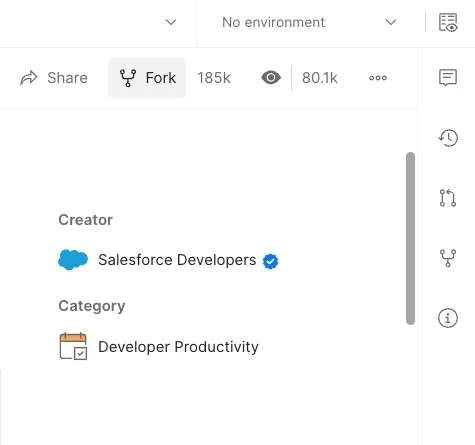
Leave the default Fork label and Workspace, and click on Fork collection.
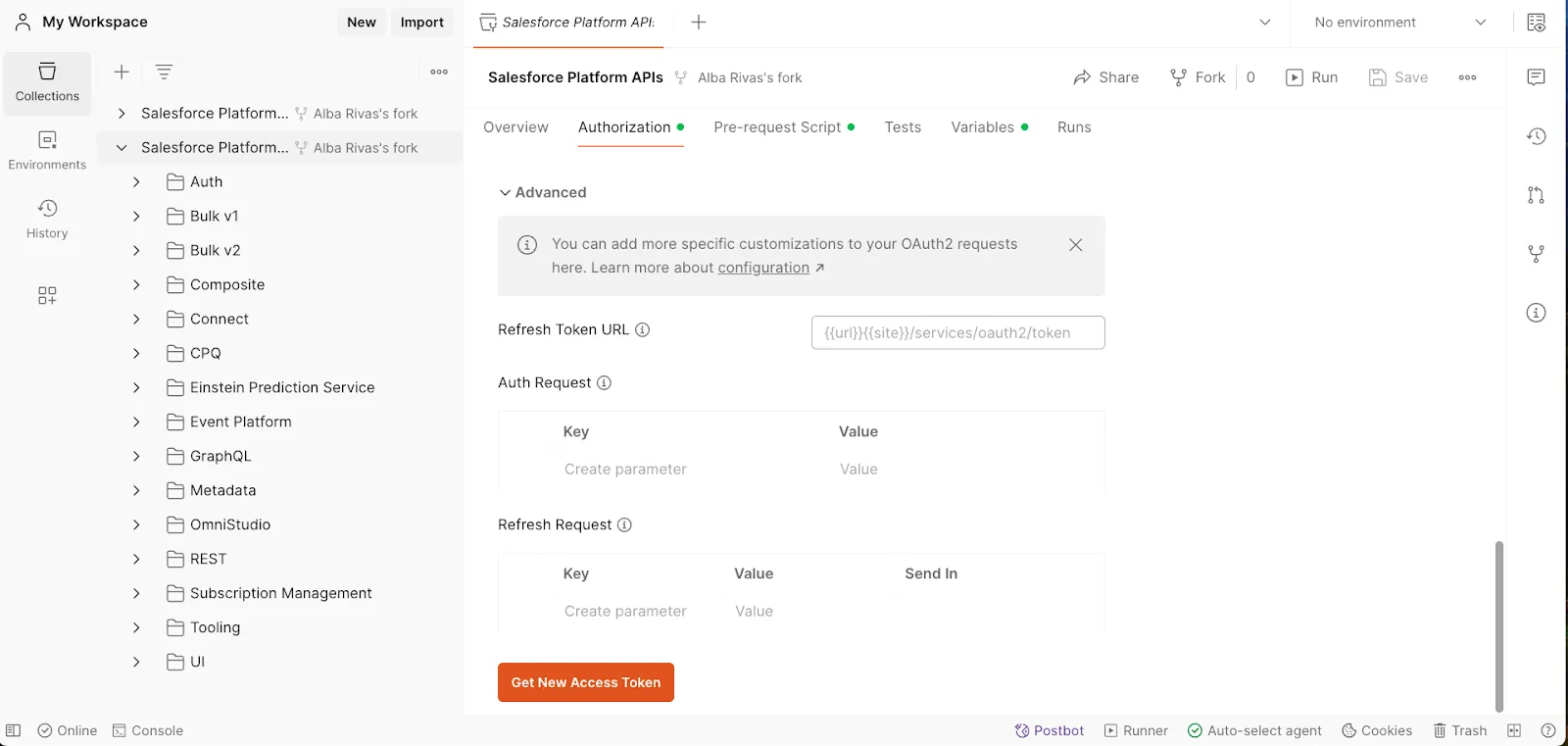
Navigate to the Authorization tab.
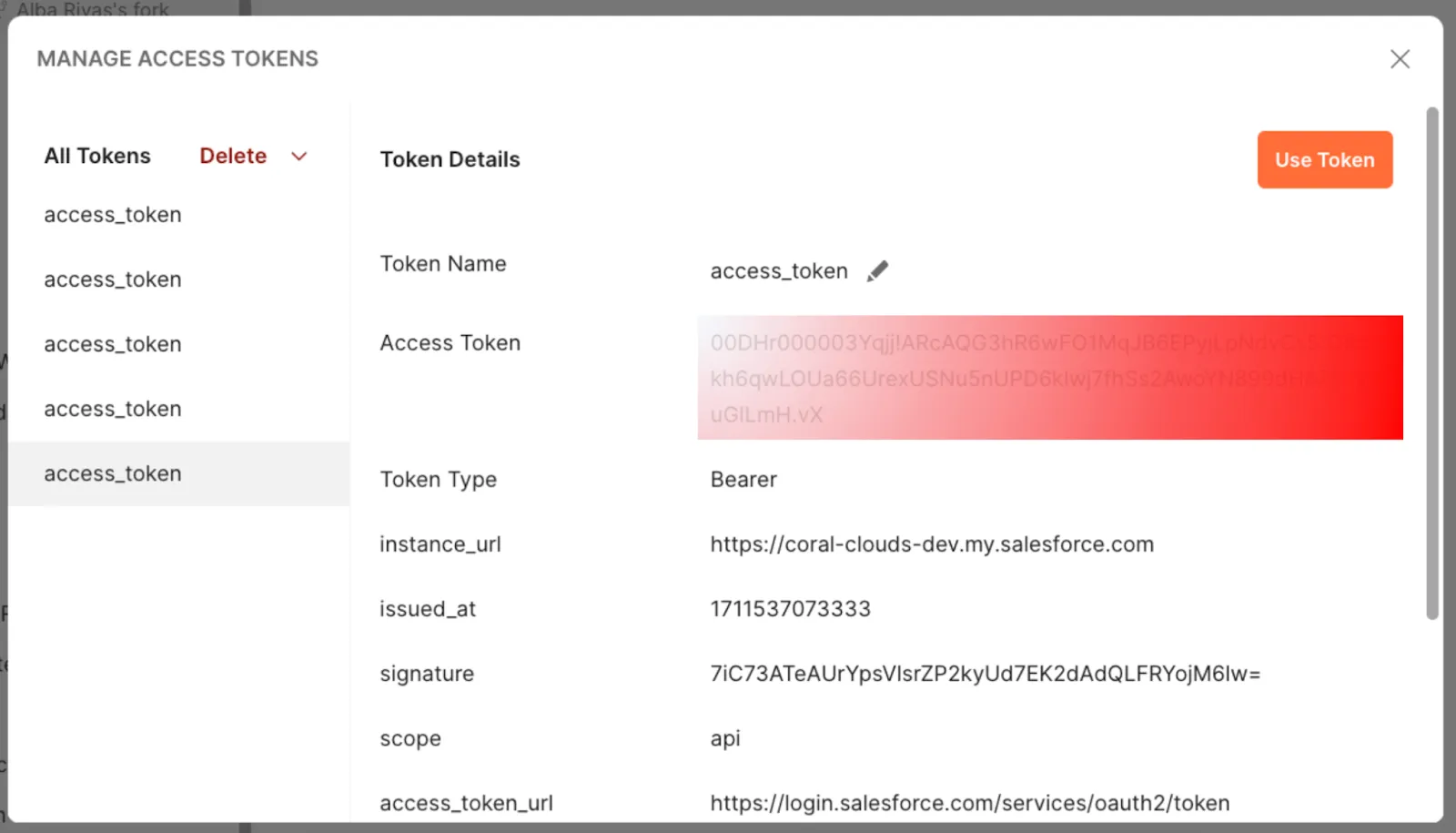
Scroll to the bottom and click on Get New Access Token.
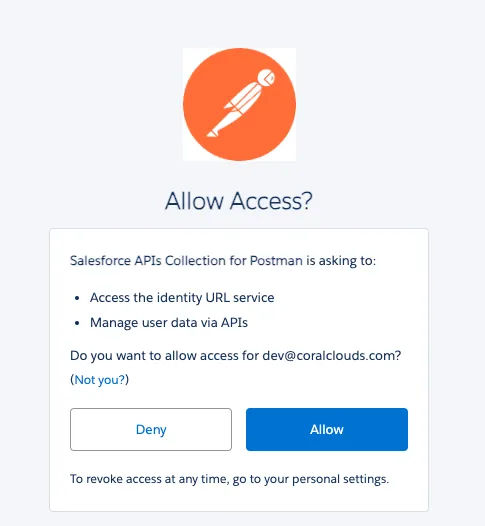
Log into your org, and Allow Access.
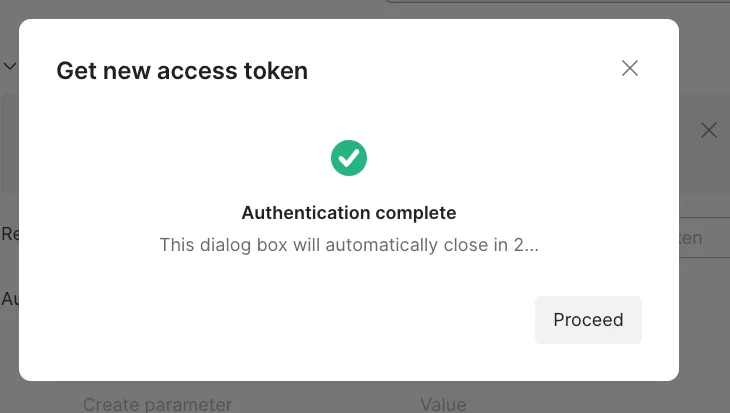
Close the window, and click Proceed.
Copy the instance_url value.
Click Use Token (very important).
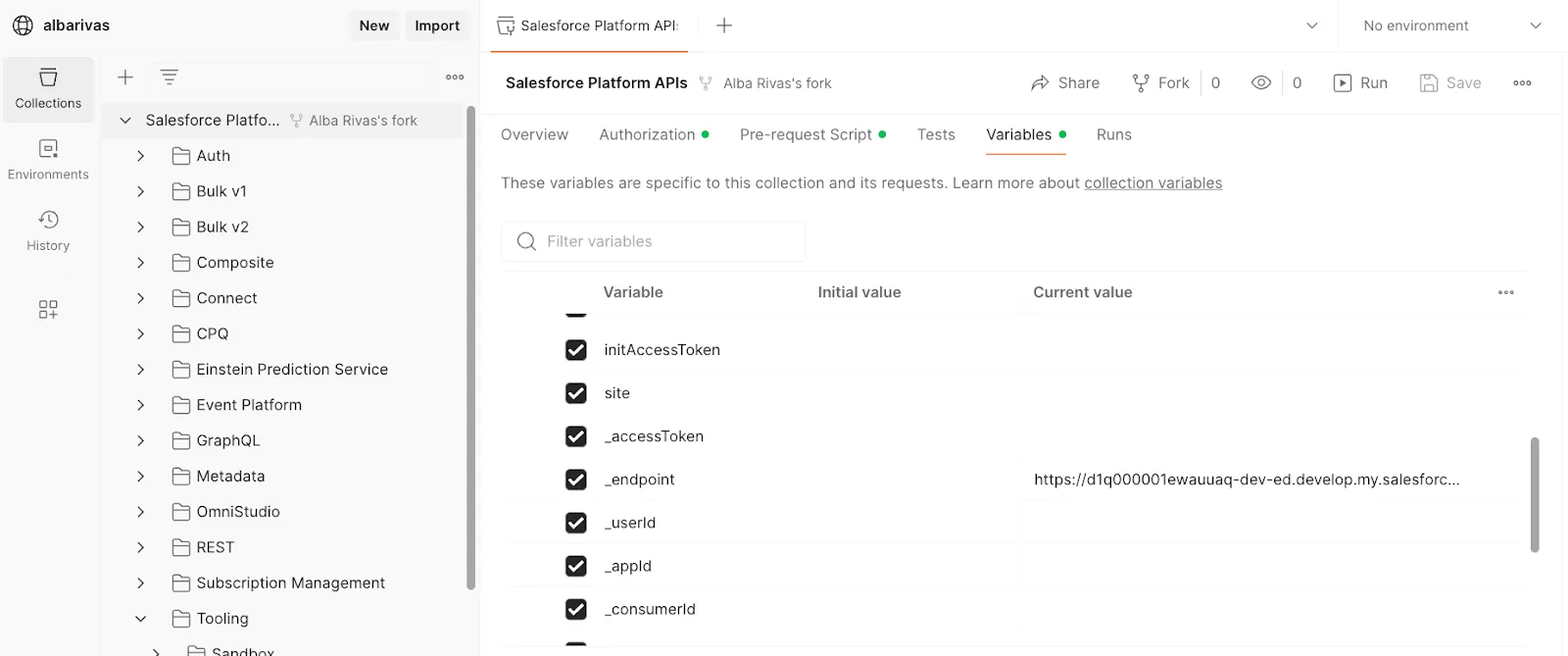
Open the Variables tab and paste the
instance_urlvalue that you copied in the Current value column for endpoint.Don’t forget to click Save, on the top right corner.
Step 2: Run a request to Salesforce from Postman
In the collection, open Connect > Einstein > Generate Response Based on Template.
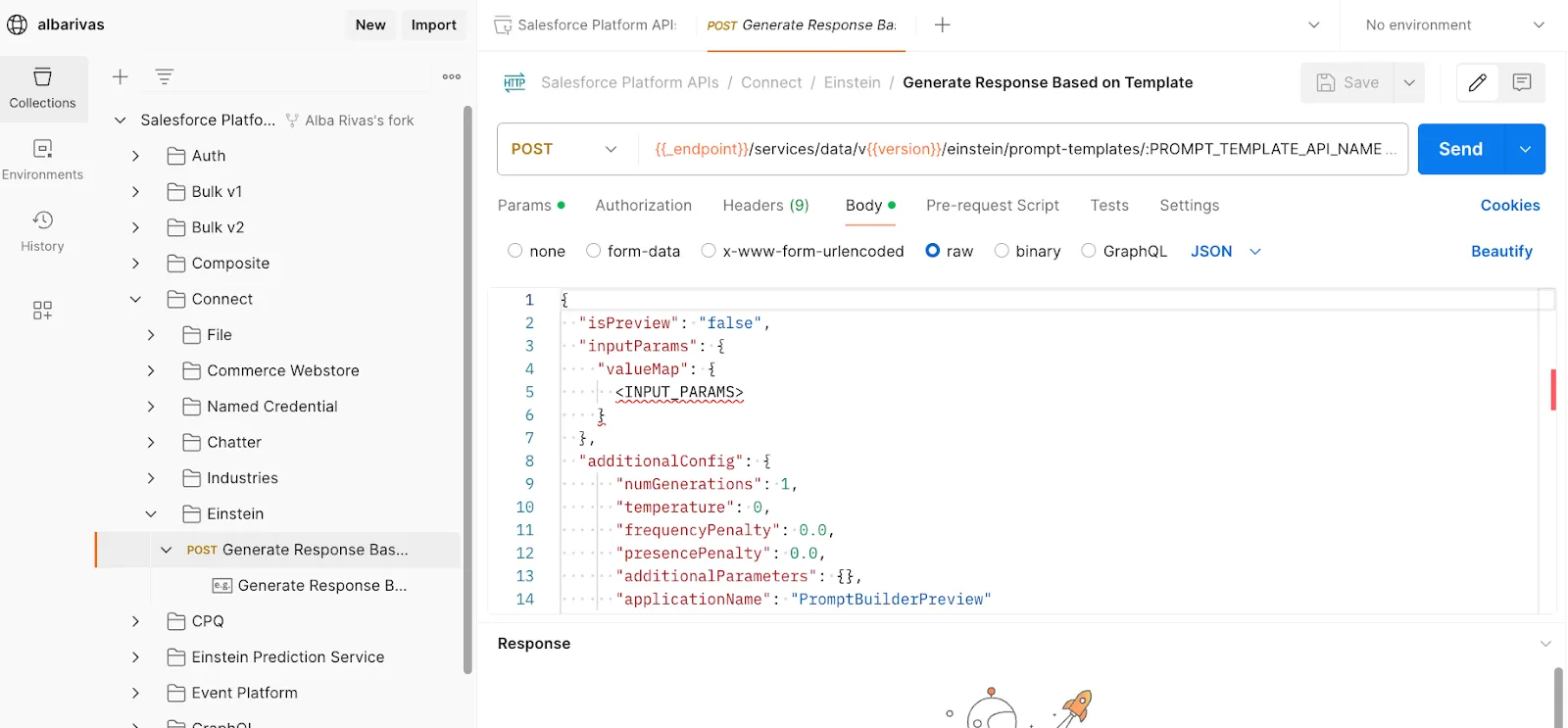
Navigate to the Params tab.
Locate the PROMPT_TEMPLATE_API_NAME path variable and set its value to
Generate_Social_Media_Posts.Navigate to the Body tab.
Replace <INPUT_PARAMS> with:
"Input:experienceSession": {
"value": {
    "id": "An Experience Session Id from your org"
    }
}
Replace the Id above with an Id that corresponds to an experience session record in your org.
TIP
You can copy it from the URL of the record page.
Click Send.
You should receive a response including the prompt and generations (what the LLM responded).
Watch Complete Video Below





0 Comments